

Workspaces
Use all datamarts in one workspace
Let each metric in a workspace pick its own datamart or semantic model.
A multi-datamart workspace reads from every datamart or semantic model in your company, including ones you add later. Each metric picks its own. The app calls this Multi-datamart, or Multi-model for semantic models.
Before you start
- Your company has 2 or more datamarts or semantic models. See Create a datamart.
Create one
-
Go to Home and select Create workspace.
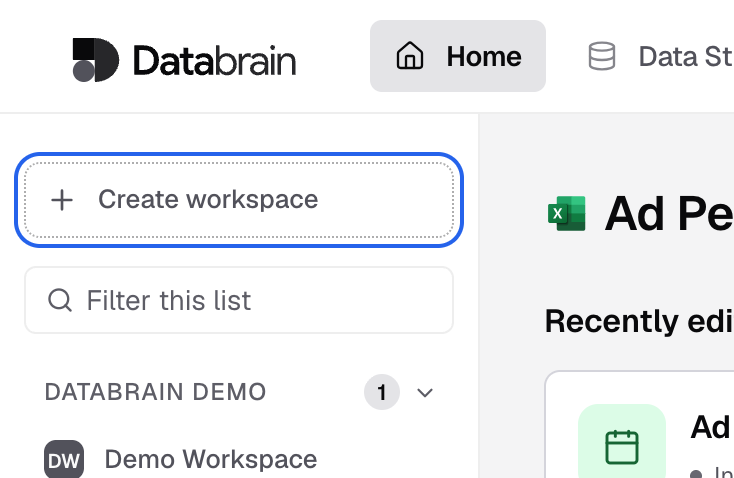
Create workspace is at the top of the Home sidebar. -
Enter a Workspace name.
-
Under Data, select Semantic model or Datamart.
-
Select All datamarts.
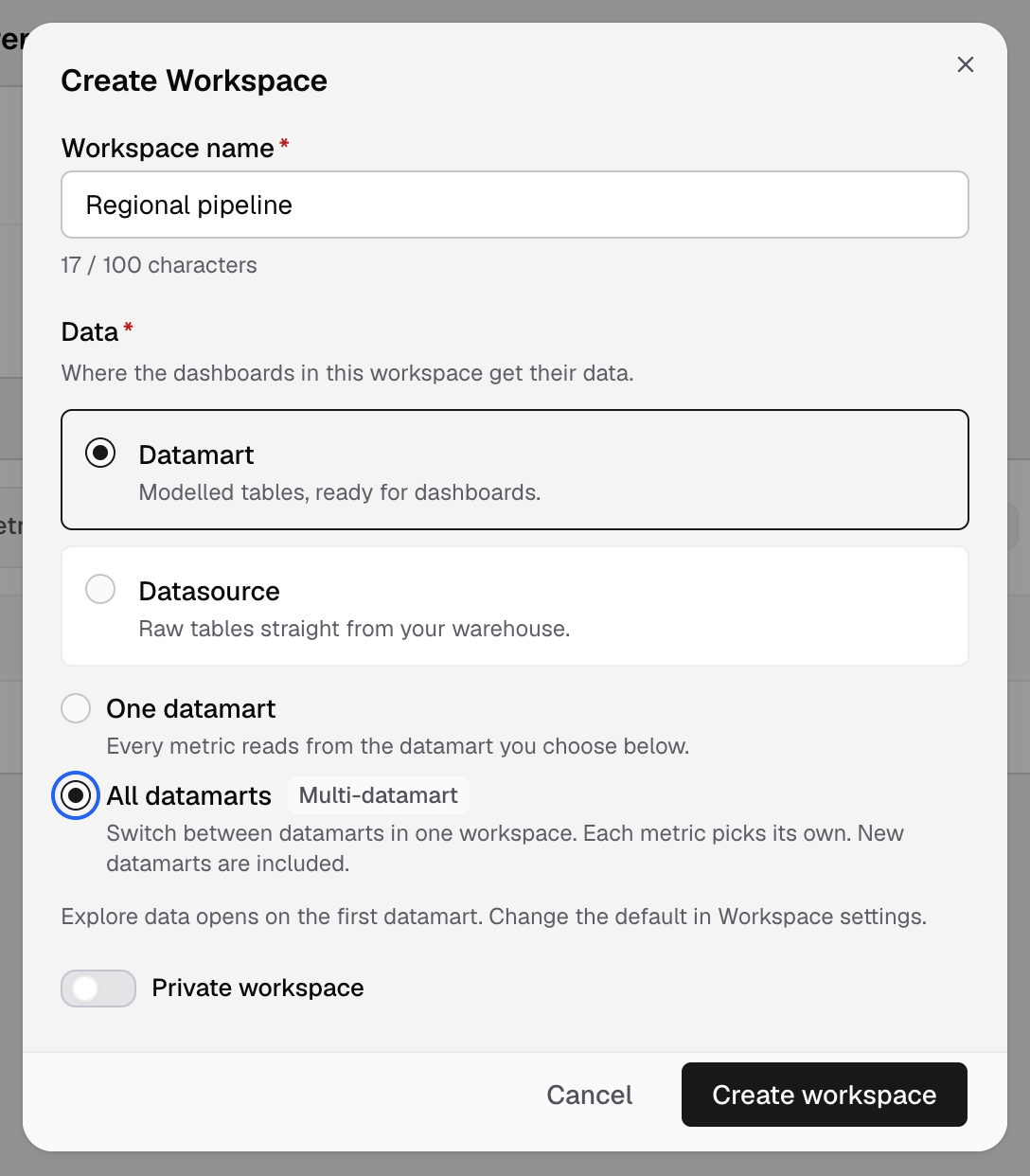
All datamarts lets each metric pick its own datamart. -
Select Create workspace.
To change an existing workspace, open its Settings, expand Data, set Data connection to All datamarts, then choose the Default datamart. Select Save changes. New metrics and Explore data open on the default.
Pick the datamart
- In the metric builder: choose the Datamart or Semantic model at the top. It starts on the workspace default, marked Default.
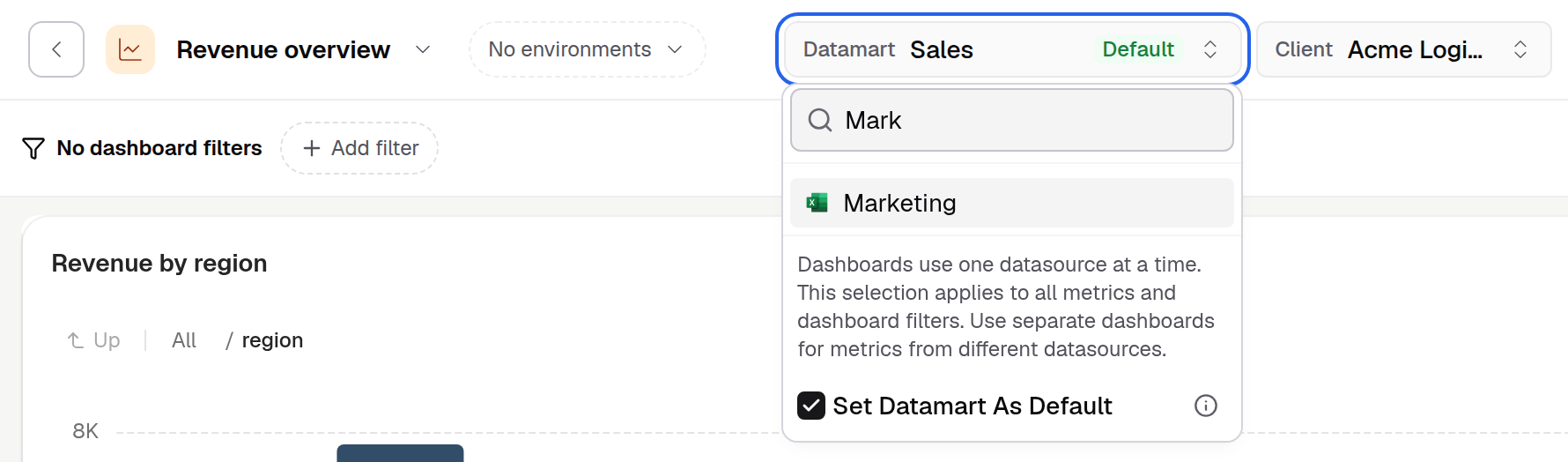
- On a dashboard: select Datamart in the dashboard header, search, and pick one. A dashboard uses one at a time, for all its metrics and filters.
- Set the default from a dashboard: in the same list, check Set Datamart As Default. You need the Workspace Settings permission.
- In Explore data: choose it in the header.
If something goes wrong
- All datamarts is greyed out. It needs 2 or more datamarts or semantic models.
- No datamarts yet. Select Model a datamart to make one.
Each datamart keeps its own tenancy. Check tenancy on every datamart before you share an embed. See Configure tenants.