

Chart actions
Add a card click action
Put an Open linked page button in the card header that opens a page you choose.
The card gets an Open linked page button beside its title. The button opens the page you set, with the metric’s id in the URL if you want.
Before you start
- Your role has the Card Click Actions permission. The default Admin, Editor and Developer roles have it.
- Drill down is off. When drill down is on, Card Click Actions is hidden.
Steps
-
Open the metric in the metric builder.
-
In the chart toolbar, select Appearance, then Actions.
-
Turn on Card Click Actions.
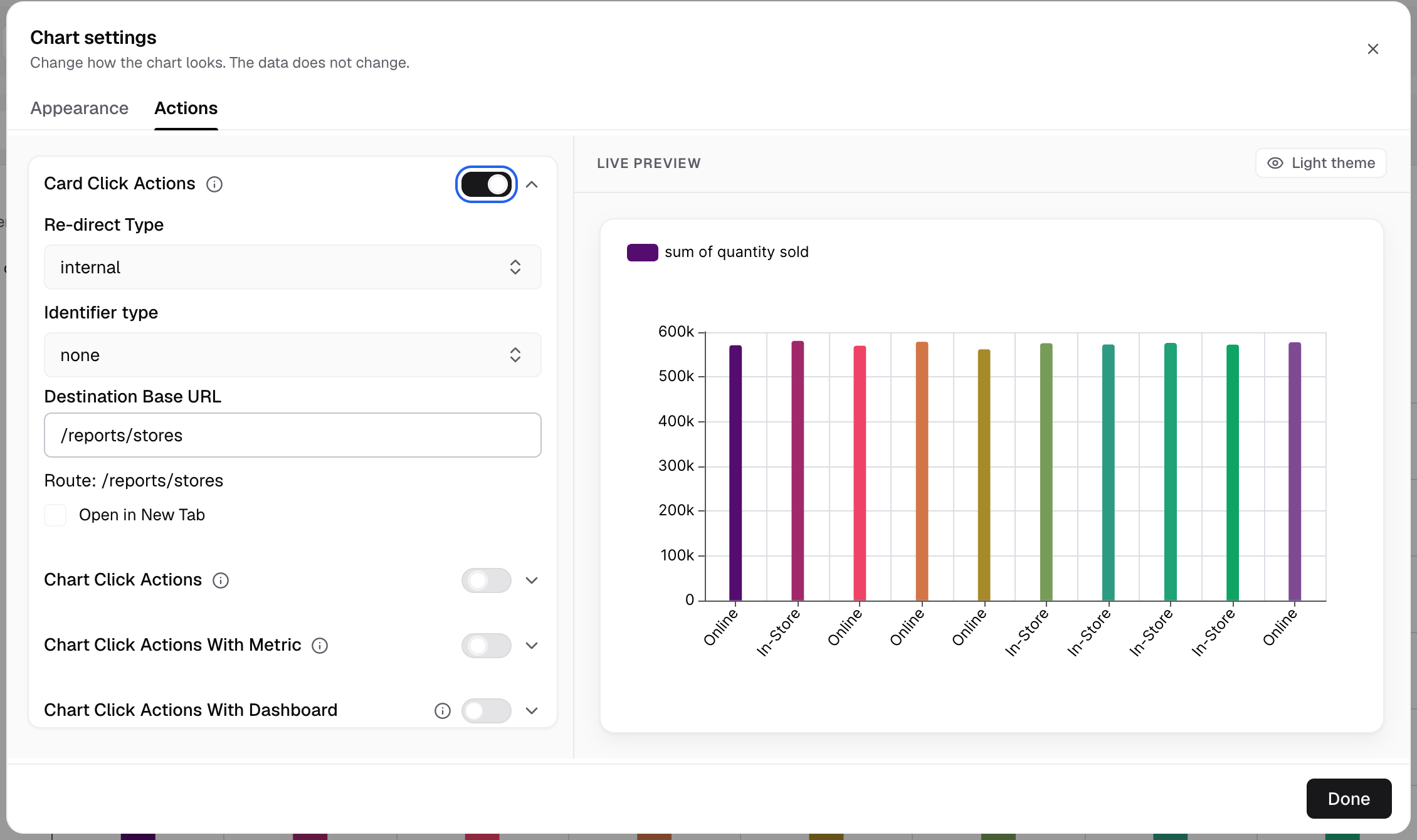
Card Click Actions is the first group on the Actions tab. -
In Re-direct Type, select Re-direct to internal route or Re-direct to external website. The field then shows
internalorexternal.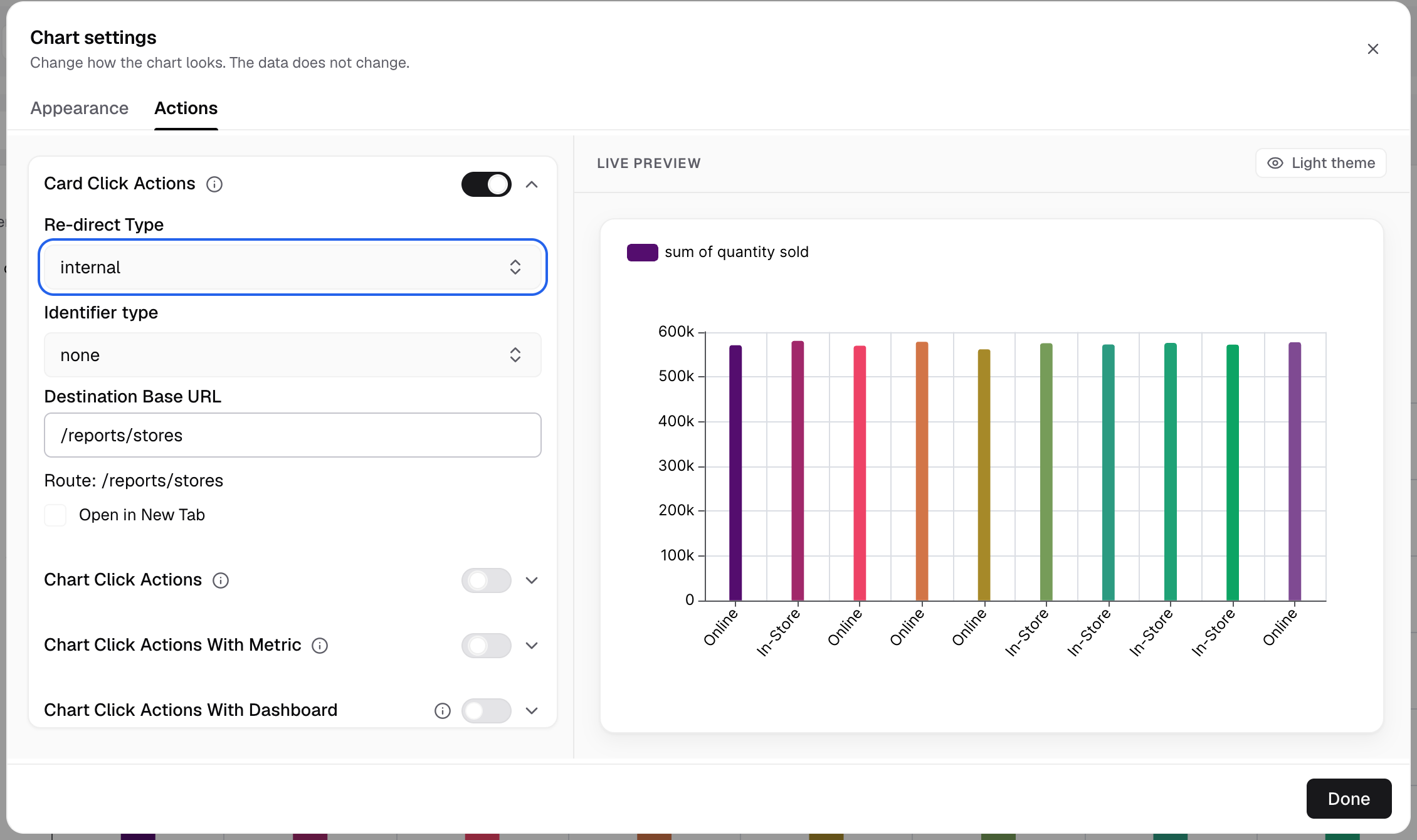
Re-direct Type shows internal or external. -
In Identifier type, select
metricid,uuidornone. -
In Destination Base URL, enter the URL, for example
/reports.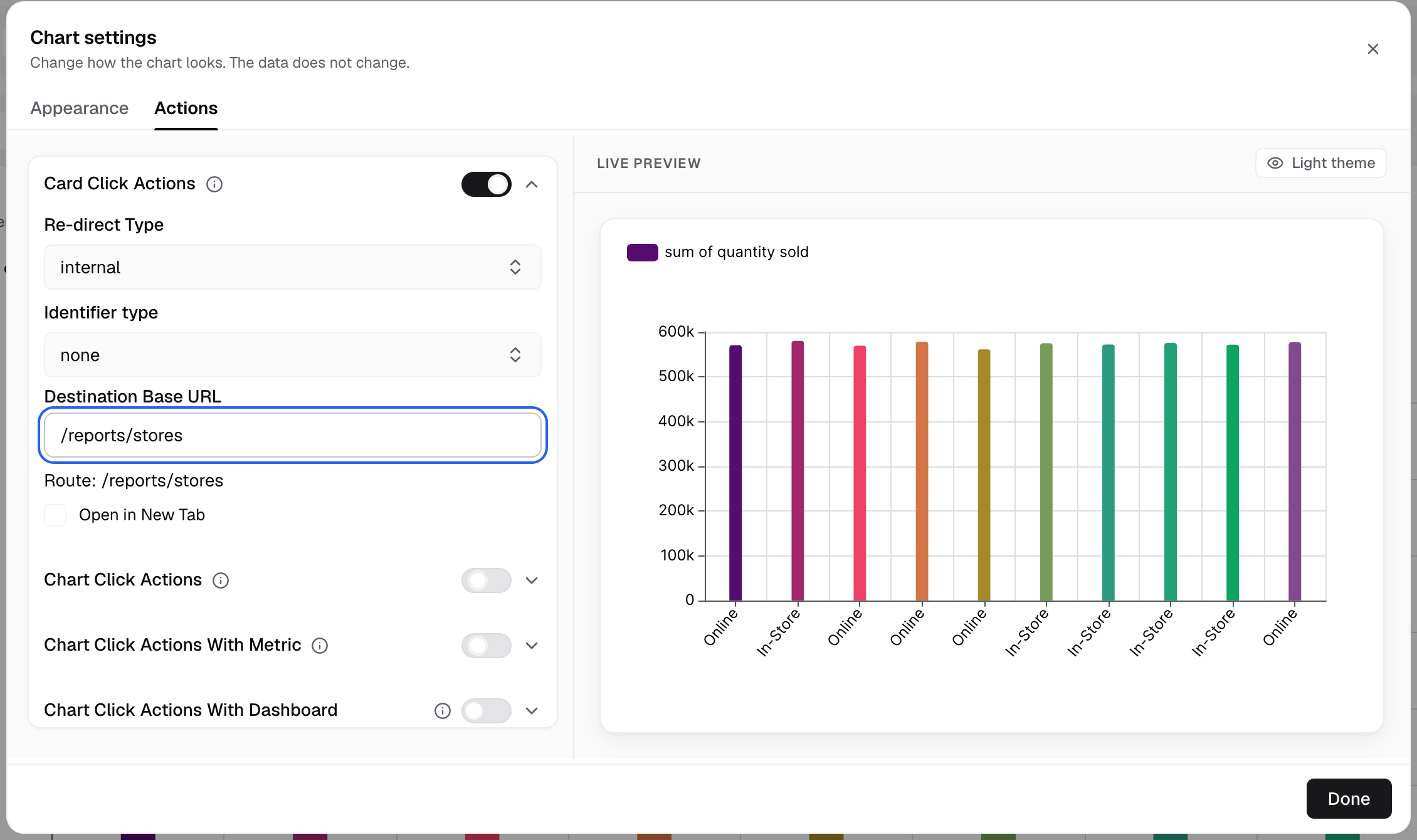
The Route line under the field shows the link the card opens. -
Check the read-only Route line.
-
For an internal route, select Open in New Tab if you want a new browser tab.
-
Save the metric.
You see the Open linked page button in the card header on the dashboard. A click on the card body does nothing.
How the route is built
| Identifier type | Route | At click time |
|---|---|---|
metricid | <base>/{{metric.metricid}} | The metric’s Metric ID |
uuid | <base>/{{metric.uuid}} | The metric’s internal id |
none | <base> | The URL as you typed it |
An external website always opens in a new tab. Open in New Tab shows only for internal routes.
The card action does not get the clicked value. To send a value from the chart, add a chart click action.
Next, set up drill down.
If something goes wrong
- “Only internal paths or http/https links are accepted.” Change the URL to a path that starts with
/, or to anhttporhttpslink.