

Chart actions
Filter the dashboard from a chart
When a viewer drills into a chart, filter the other cards on the same dashboard to the clicked value.
A viewer drills into Europe on one card. Every other card on the same dashboard shows only Europe. Dashboards in the Databrain app do this for every drill, with or without the switch. In a customer embed, the Cross Dashboard Drill Down switch turns it on for the card. The switch does not open another dashboard. To open another dashboard, see Open another dashboard from a chart.
Before you start
- Drill down is on for the metric.
- Your role has the Cross Filter Dashboard permission of drill down. The default Admin, Editor and Developer roles have it.
- The metric is not in the SQL tab. There the switch is hidden.
Turn it on for embeds
-
Open the metric in the metric builder.
-
In the chart toolbar, select Appearance, then Actions.
-
Open Add Actions On Current Card.
-
Under Drill down, turn on Cross Dashboard Drill Down.
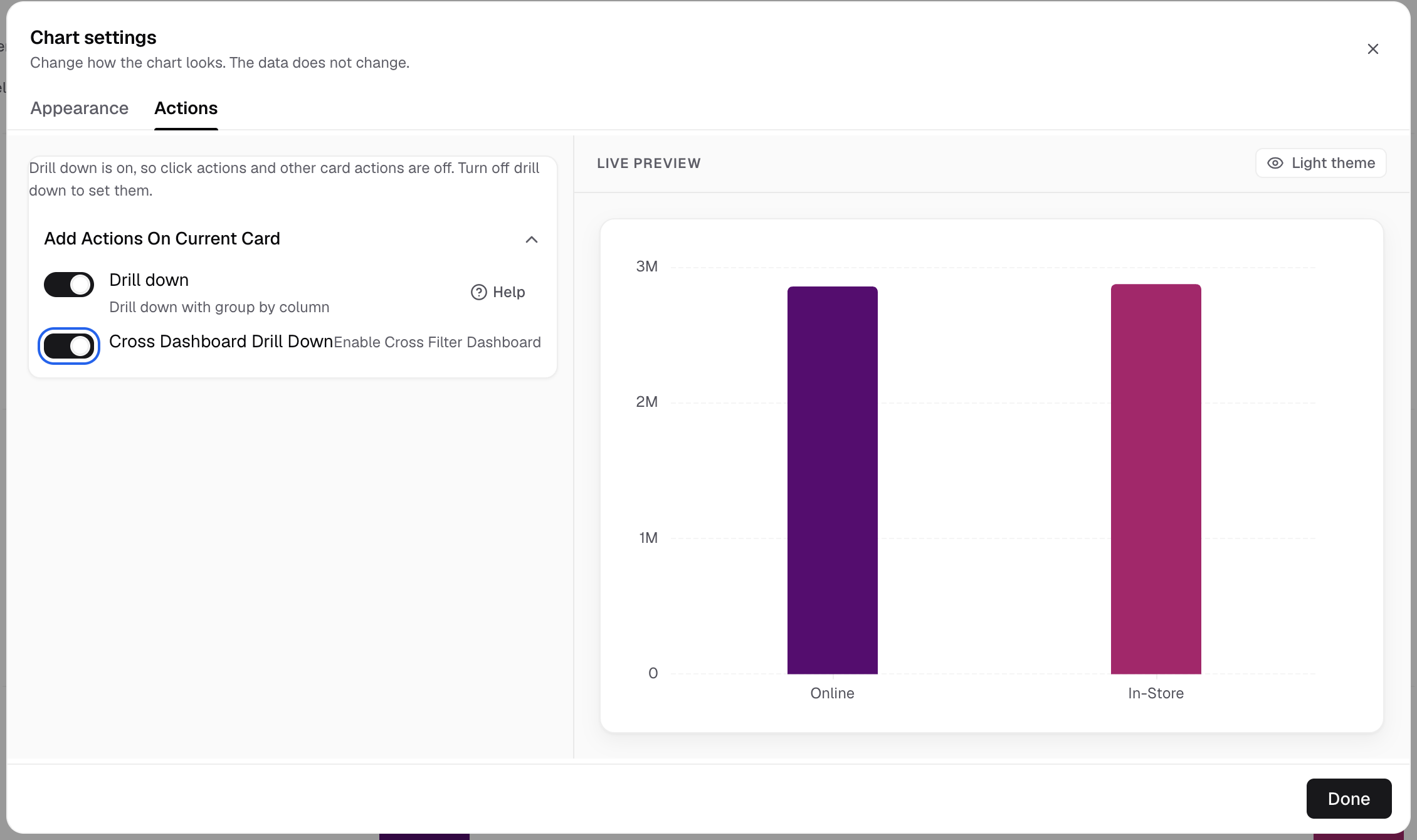
Cross Dashboard Drill Down is under Drill down in Add Actions On Current Card. -
Save the metric.
The switch has no other fields.
What viewers see

- The viewer drills into a value on the card. See How viewers drill.
- The other cards on the dashboard load again, filtered to that value. The card the viewer drilled does not filter itself.
- A Filtered to bar shows a chip for each value.
The filter uses the first dimension of the level the viewer clicked. On a table, it uses the whole clicked row. A date becomes a date range at the chart’s time grain.
A drill on a second card adds its value to the list, so the cards narrow more.
To remove the filter:
- Select the remove button on one chip.
- Select Clear filters to remove all of them.
- On the drilled card, select All or a level in the breadcrumb.
In an embed
Dashboards in the Databrain app and the in-app preview always filter this way. In a customer embed, a card filters the others when its Cross Dashboard Drill Down switch is on. To turn it on for every card, add enable-cross-filter to the embed. Both work only on the redesigned cards, with ui-version="v2". See Drill down in embedded dashboards.
Next, use dashboard filters.
If something goes wrong
- “This filter column is no longer available.” The metric no longer has the column. Refresh the metric and select a column again.
- The switch is not shown. Turn on Drill down first, and leave the SQL tab.