

Chart actions
Open a metric from a chart
Open another metric of the same dashboard in full screen when a viewer clicks a chart.
When a viewer clicks the chart, a different metric of the same dashboard opens in the card’s full-screen view. The page does not change.
Before you start
- Open the metric from its dashboard, and the dashboard has other metrics. Without them, Chart Click Actions With Metric does not show.
- Your role has the Chart Click Actions permission. The default Admin, Editor and Developer roles have it.
- The chart is not a pivot table, horizontal stack table, trend analyzer or box plot.
Steps
-
Open the dashboard, then open the metric to edit it.
-
In the chart toolbar, select Appearance, then Actions.
-
Turn on Chart Click Actions With Metric.
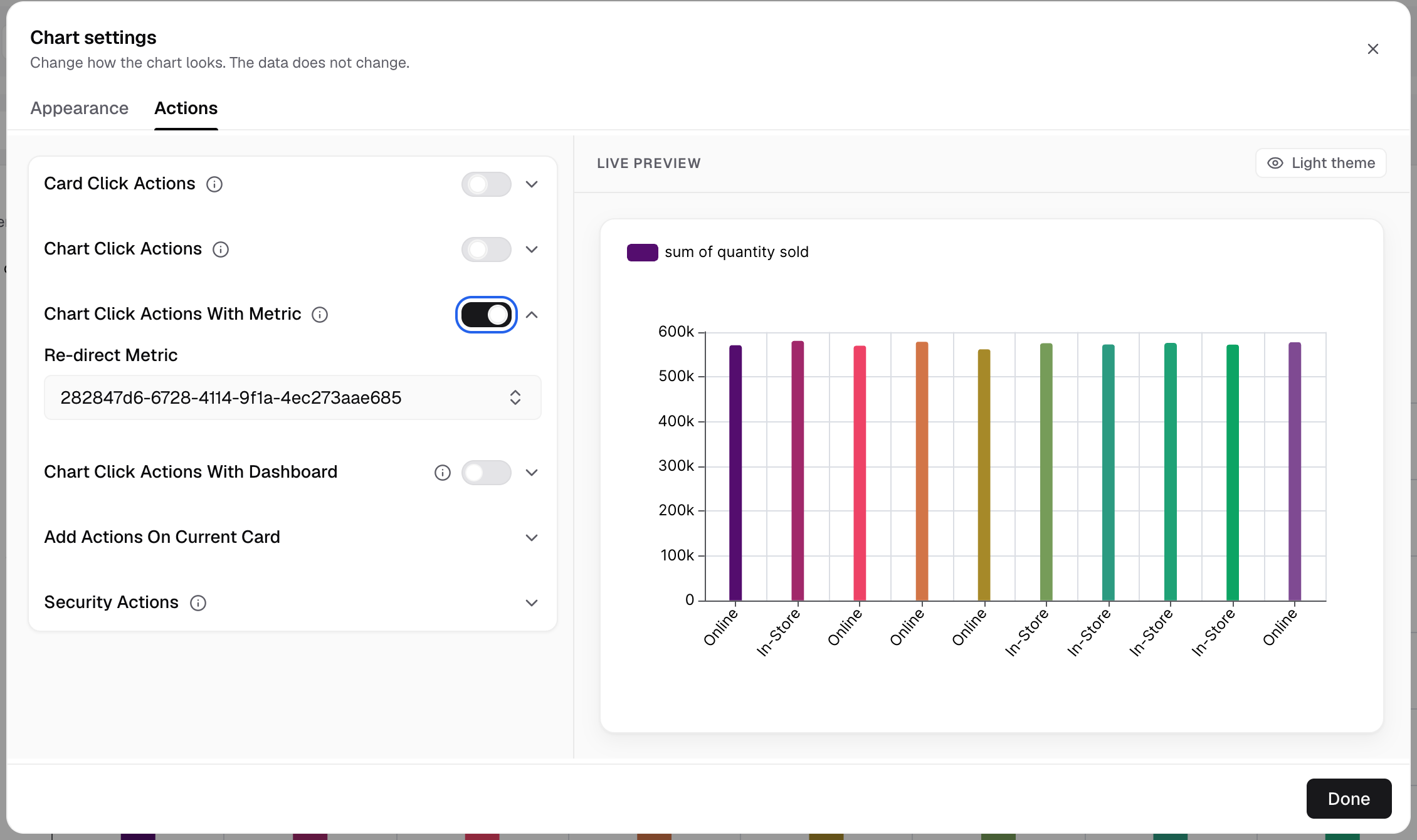
Turn on Chart Click Actions With Metric. -
In Re-direct Metric, select the metric to open.
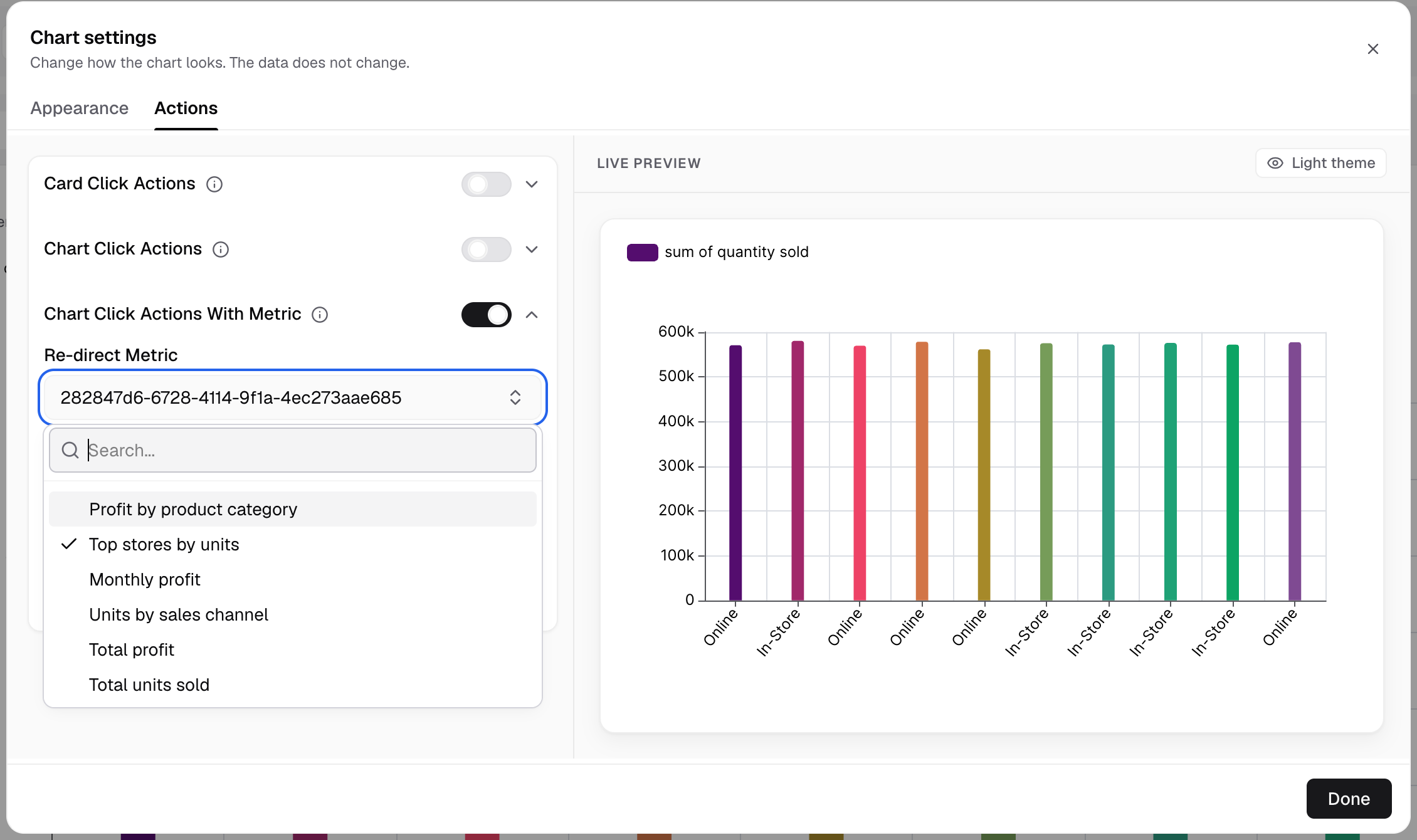
Re-direct Metric lists the metrics on the same dashboard. -
Save the metric.
On the dashboard, a click on the chart opens the chosen metric in full screen. Right-click or long-press opens the point menu, with Open chart as its first row.
The clicked value does not filter the metric that opens.
If Drill down is on, the action runs only when the viewer reaches the last drill level.
Next, add a card click action. To open a different dashboard instead, see Open another dashboard from a chart.