

Chart actions
Set up drill down
Let viewers click a data point to open the next dimension of the chart.
A viewer clicks a bar, for example Europe, and the chart shows the next dimension, for example countries in Europe. Each dimension of the metric is one level.
Before you start
- Your workspace is on the Business plan or higher. On lower plans the switch is locked.
- Your role has the Drill down permission. The default Admin, Editor and Developer roles have it. The Viewer role does not.
- The metric has 2 or more dimensions and at least one measure set to SUM, AVG or COUNT.
- The chart type can drill. See Charts that can drill.
Steps
-
Open the metric in the metric builder.
-
Add the dimensions in the order of the levels, for example
region, thencountry, thencity. -
In the chart toolbar, select the Drill-down pill next to the chart type.
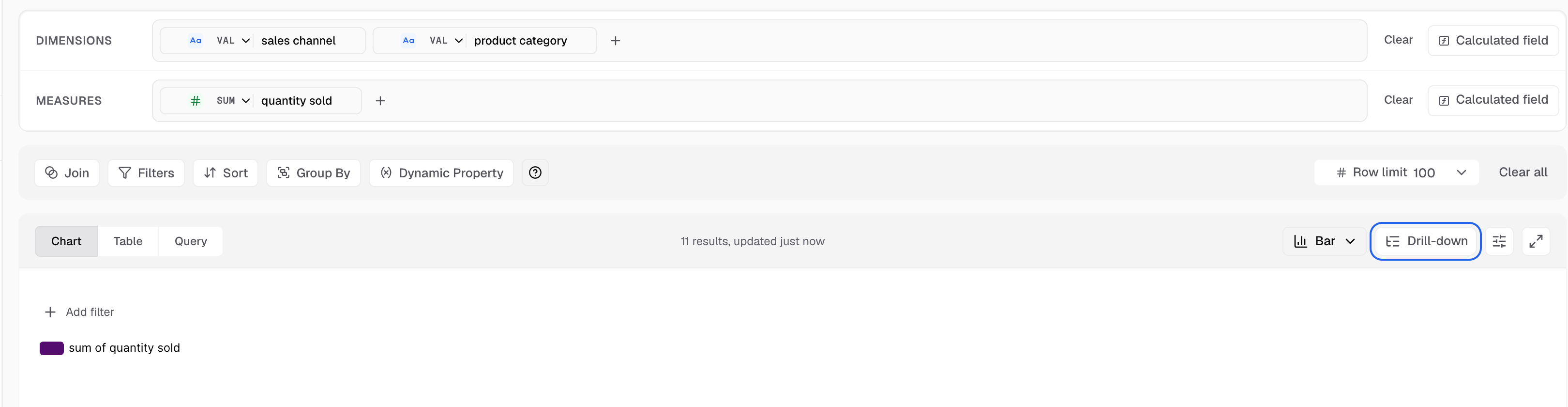
The Drill-down pill is next to the chart type. The dimensions above set the levels. -
Save the metric.
You can also turn it on in Appearance > Actions > Add Actions On Current Card > Drill down.
You see the Drill Down Enabled badge in the header and a drill path with a Reset button. Databrain makes one level per dimension, in the order you added them. Each level is named after its dimension and starts with the chart’s settings.
To change the order of the levels, reorder the dimensions, then turn drill down off and on again. Turning drill down off deletes the levels and their chart settings.
To change how one level looks, select that level in the drill path, then edit its Appearance.
Drill down turns off most other actions. Only Chart Click Actions stays, on the last level. See When drill down is on.
You can also ask Bryn in the metric builder to order the levels, for example drill from category to channel to region. Bryn uses only the dimensions the metric has. You apply its result.
How viewers drill
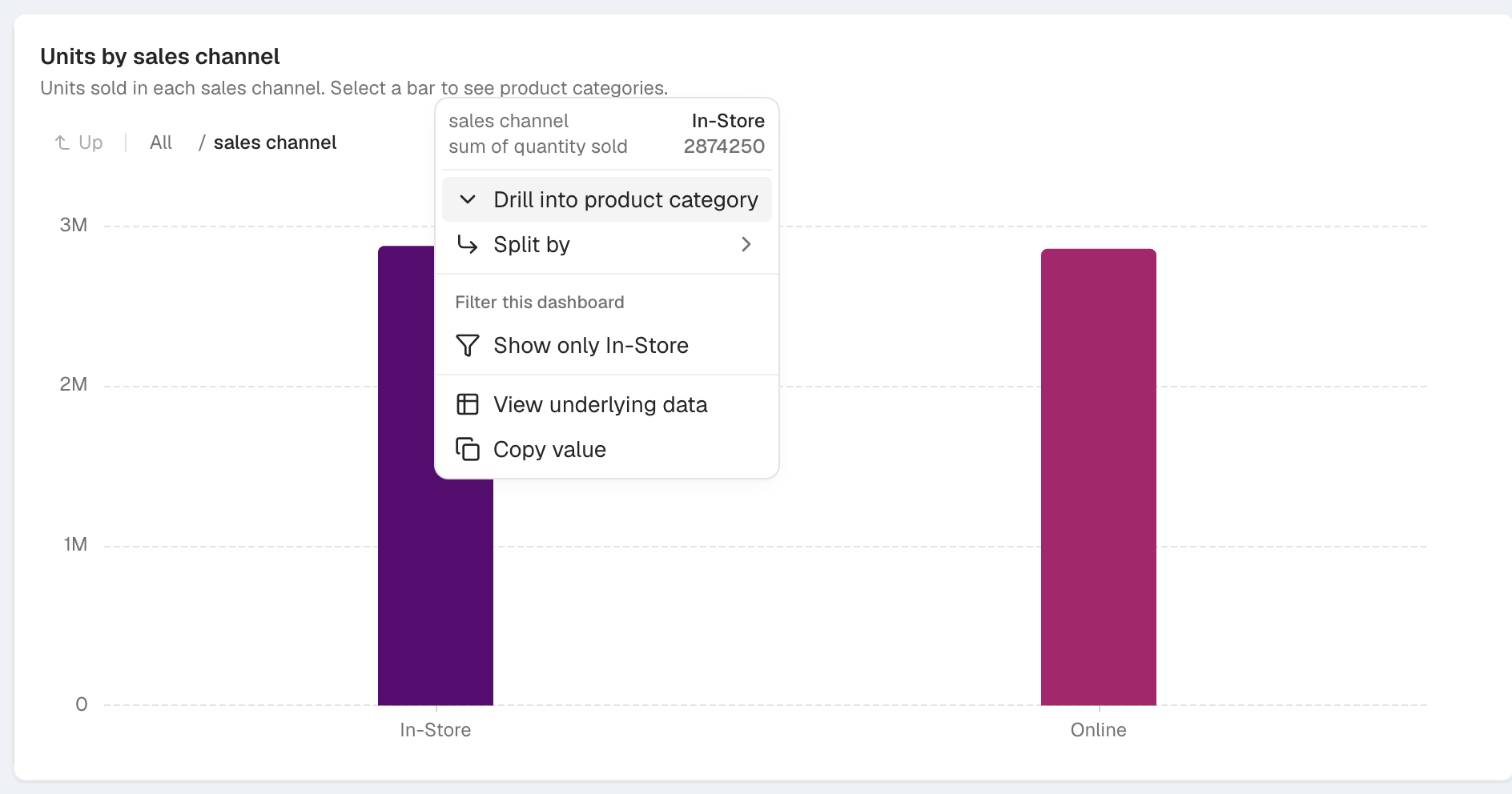
- The viewer clicks a data point. The point menu opens.
- The viewer selects Drill into and the name of the next level. The chart shows that level for the clicked value.
The menu also has View underlying data and Copy value. Right-click and long-press open the same menu.
If the chart has a click action, a click runs the click action. The viewer right-clicks to drill.
On a table, the viewer clicks the link-styled value in a dimension cell, or right-clicks a cell.
A breadcrumb under the card shows the path, for example region: Europe:
- Up goes back one level. On the first level it is off.
- All clears the whole drill.
- Select a level in the breadcrumb to go back to it.
- Press Esc to go up one level.
Charts that can drill
Table, line, stepped line, bar, stack, row, horizontal stack, combo, vertical combo, horizontal combo, area, stacked area, pie, doughnut, rose, histogram, scatter, bubble, bullet, network, tree map, waterfall and waterfall v2.
Other chart types show “The selected chart doesn’t support drill-down.” Single value, funnel, gauge, progress bar, sankey, box plot, radar, time series, pivot tables, maps and Gantt cannot drill.
In an embed
Dashboards in the Databrain app always use the point menu and breadcrumb on this page. A customer embed uses them only with ui-version="v2". To let viewers split by any column, add enable-adhoc-drill. See Drill down in embedded dashboards.
Next, filter the dashboard from a chart.
If something goes wrong
- “Add a second dimension to use drill-down.” Add another dimension. Each dimension is a level.
- “Set a measure to SUM, AVG or COUNT to use drill-down.” Drill down splits a total, so it needs an aggregated measure.
- “Your role cannot change drill-down.” Ask a workspace admin for the Drill down permission.
- “Drill level ... has no measure” when you save. Add a measure to that level, or delete the level.
- Drill Down Reset opens when you change columns. Select Approve to make the change and turn drill down off. Select Discard to cancel the change.
- “Run the query to use drill-down.” On a custom SQL metric, run the query first. Each level is a column of the result.