

Quick Start
Customize a dashboard
Add a note that explains the numbers, then arrange the cards and save the layout.
Before you start
- You have a dashboard with at least one metric. See Create your first metric.
- Your role lets you edit dashboards.
Add a text element
Use a text element for a title, a definition or the period the numbers cover.
- Open the dashboard and select Add element in the toolbar.
- Enter a Title, for example
How to read this dashboard. A Description is optional. - Pick the Title Alignment and Description Alignment.
- Leave Element Type on Custom Text Box.
- Write the text in the editor. It has headings, colours, lists, bold, italic, links and images.
- Turn off Merge Card to Background if you want the text on a white card. It is on by default.
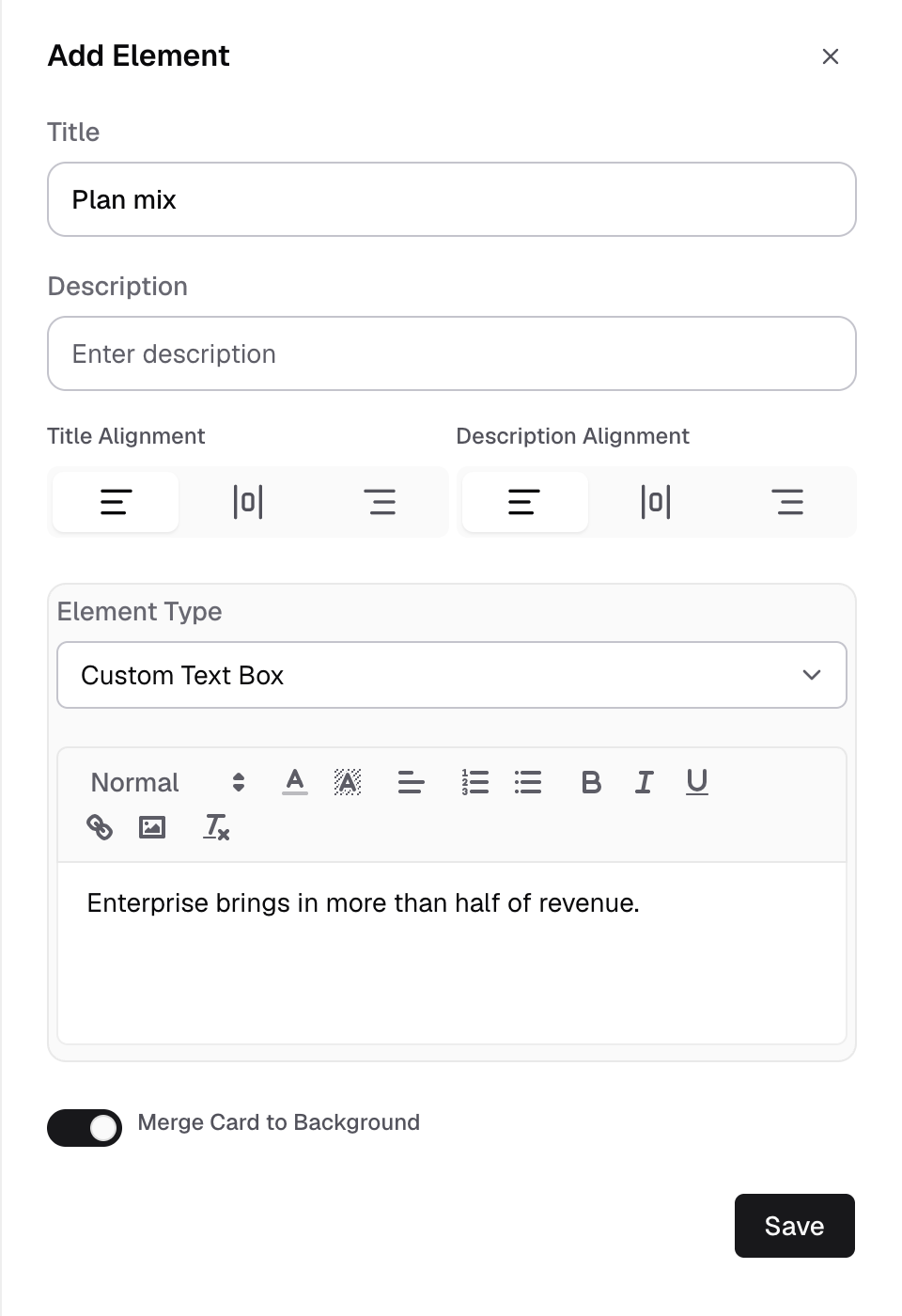
- Select Save.
The text card appears on the dashboard.
Element Type has two more choices: Metric Summary and Metric Expression, a single number calculated from other metrics. See Dashboard elements.
Arrange the cards
- Select Edit layout in the toolbar. The bar now reads Editing layout.
- Drag a card by its handle at the top left to move it. Drag the resize handle under a card to change its size.
- To change the space between cards, select Spacing and set Horizontal gap and Vertical gap.
- Check Publish layout for. All customers changes the default layout. When you preview one customer, you can save a layout for that customer only.
- Select Save layout. It turns on after you change something.
- For All customers, confirm with Publish layout.
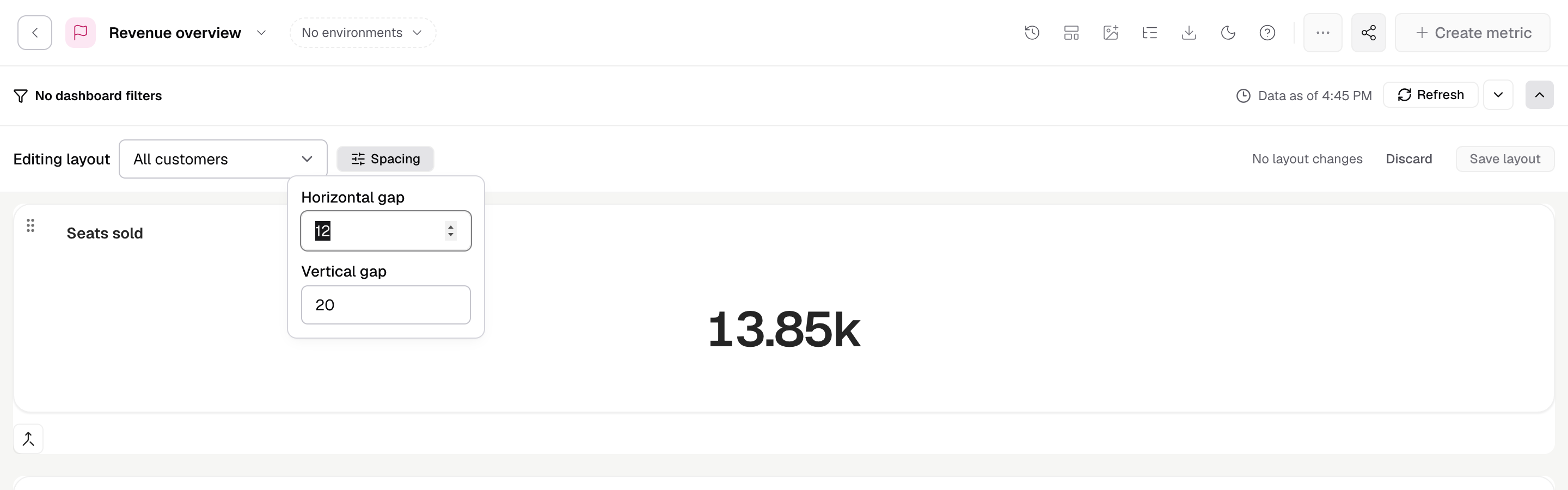
Customers who have their own saved layout keep it. Select Discard to leave without saving.
Other toolbar actions
| Select | To |
|---|---|
| Add filter | Add a filter for everyone who views the dashboard. See Dashboard filters. |
| Refresh | Load fresh data. The arrow next to it sets auto refresh. |
| Embed and share | Get the embed code or a preview link. See Share a dashboard. |
| More (...) | Manage metrics, Report scheduler and Rules builder. See Dashboard settings. |
Next, share or embed the dashboard.
If something goes wrong
- Save layout stays greyed out. You have not changed anything yet. Move a card or change a gap.
- “The layout was not saved.” Try again from Edit layout. If it fails again, ask an Admin to check your layout permissions.