

SQL and Python
Build a metric with SQL
Write a SELECT query in the metric builder, run it, and turn the result into a chart.
Before you start
- Your role has the SQL View and Edit permissions. The default Editor and Developer roles have them.
- You are in the metric builder. See Create a metric.
Steps
-
In the metric builder, select the SQL tab above the schema list.
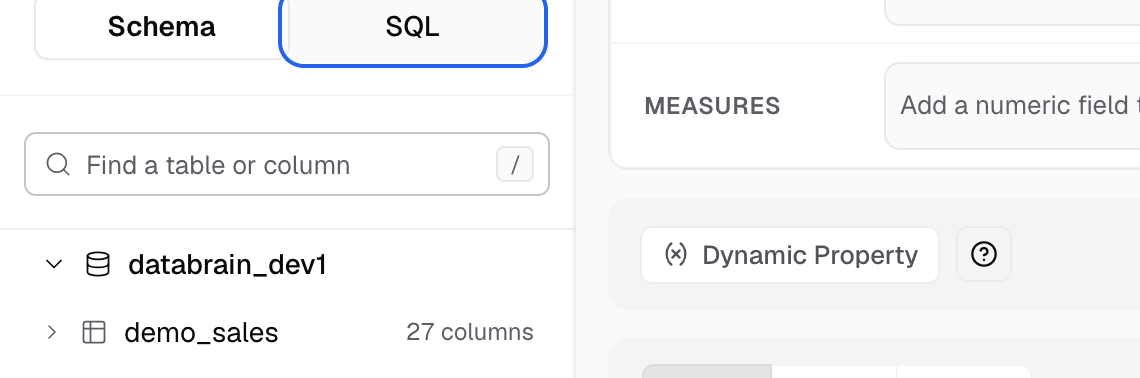
The SQL tab sits next to Schema, above the table list. -
Keep Query language on SQL.
-
Write a
SELECTorWITHquery in the Query editor. Use the schema list on the left to find tables and columns. -
Select Run query, or press Cmd+Enter (Ctrl+Enter on Windows).
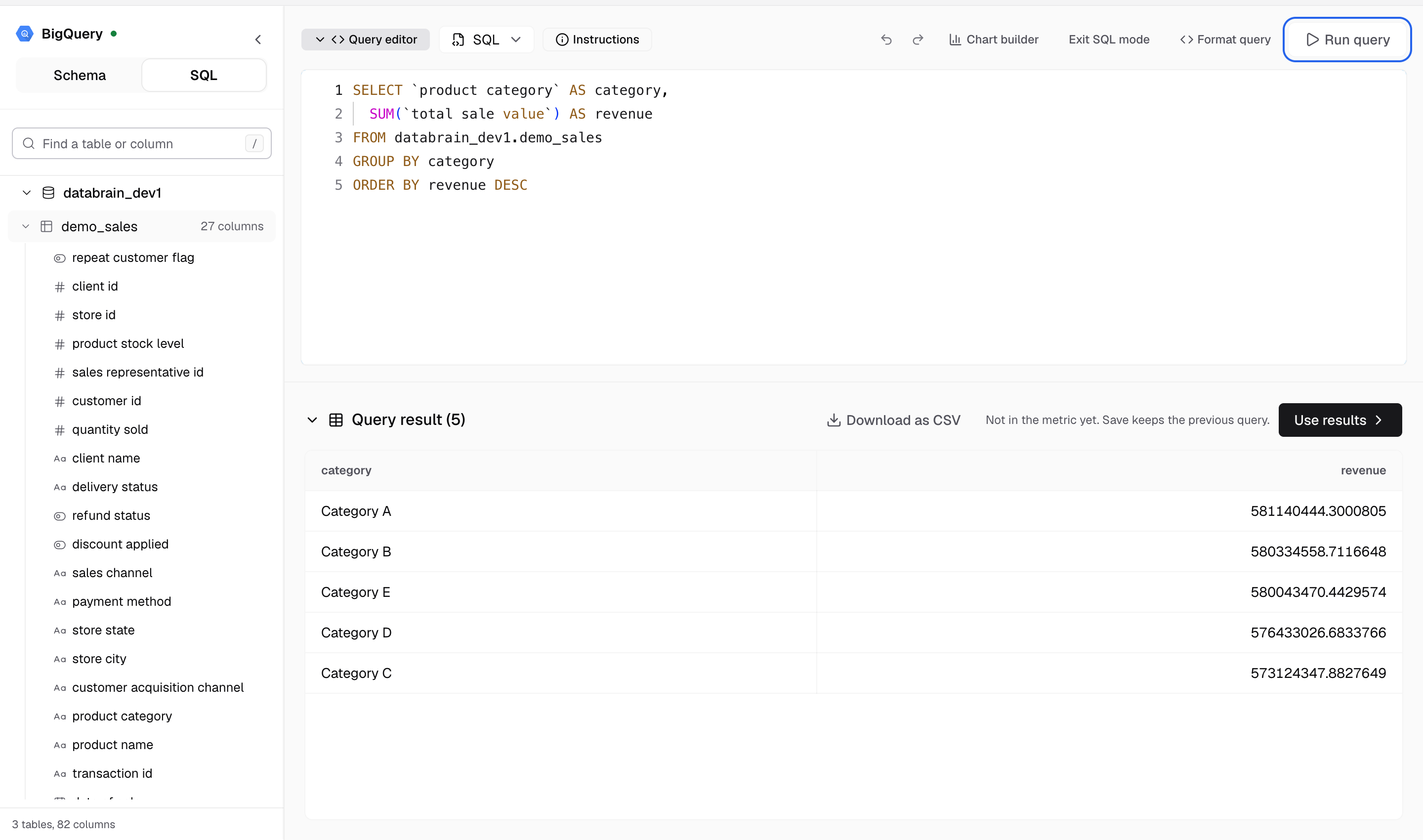
Run query shows the rows under the editor. -
Check the result in the output. Choose a Row limit to see the top rows only.
-
Select Use results to put the query in the metric, then pick the chart and save the metric.
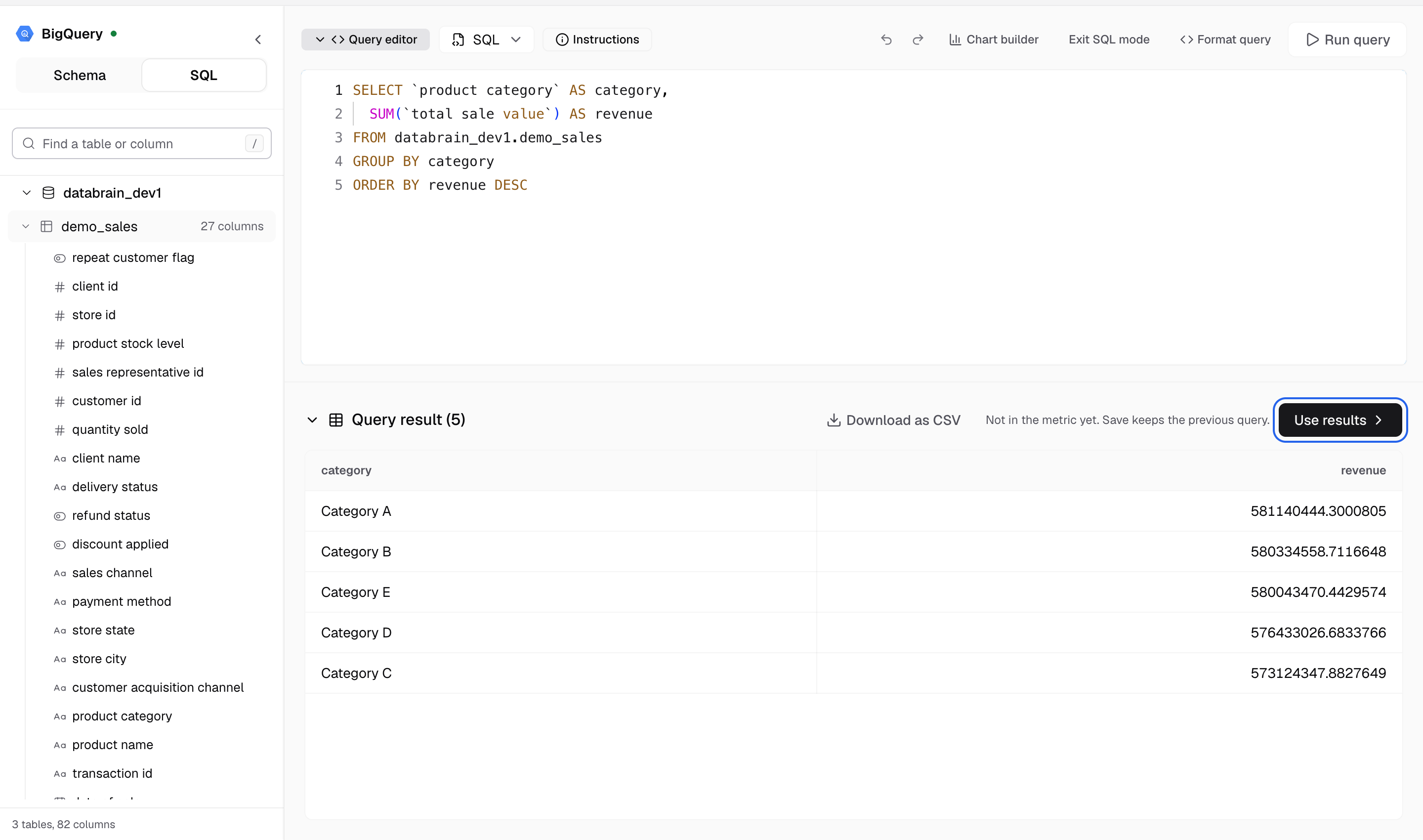
Use results puts the query in the metric.
Select Format query to tidy the SQL. Select Exit SQL mode to go back to the drag-and-drop builder.
Filter by client
For a customer-facing metric, add the client filter, or every client sees every row:
SELECT "o"."status" AS "status", COUNT(*) AS "orders"
FROM "public"."orders" AS "o"
WHERE "o"."client_id" = 'client_id_variable'
GROUP BY "o"."status"
Databrain replaces client_id_variable with the client ID from the guest token. With database tenancy, use {{DATABASE_NAME}} in the table name instead, for example FROM {{DATABASE_NAME}}.public.orders. See SQL guidelines.
If something goes wrong
- please add valid select query. Only one
SELECTorWITHquery is allowed. RemoveINSERT,UPDATE,DELETE,CREATEand other statements that change data. - There’s no column called ... Check the column name and its quotes.
- ... has to be grouped or aggregated. Add the column to
GROUP BY, or wrap it inSUM,COUNTor another aggregate. - Databrain does not run queries on system tables. Query your own tables, not
information_schemaorpg_catalog. - Can’t preview a query that still contains ... Swap the variable for a real value to test the query, then put the variable back before you save.