

Metric filters
Use SQL for filter options
Fill a metric filter's list of options from a SQL query you write.
Fill a metric filter’s list of options from a SQL query you write.
Before you start
- The metric is open in the builder and the preview has results. Create a metric
Steps
-
Above the chart, select Add filter, then Metric Filters.
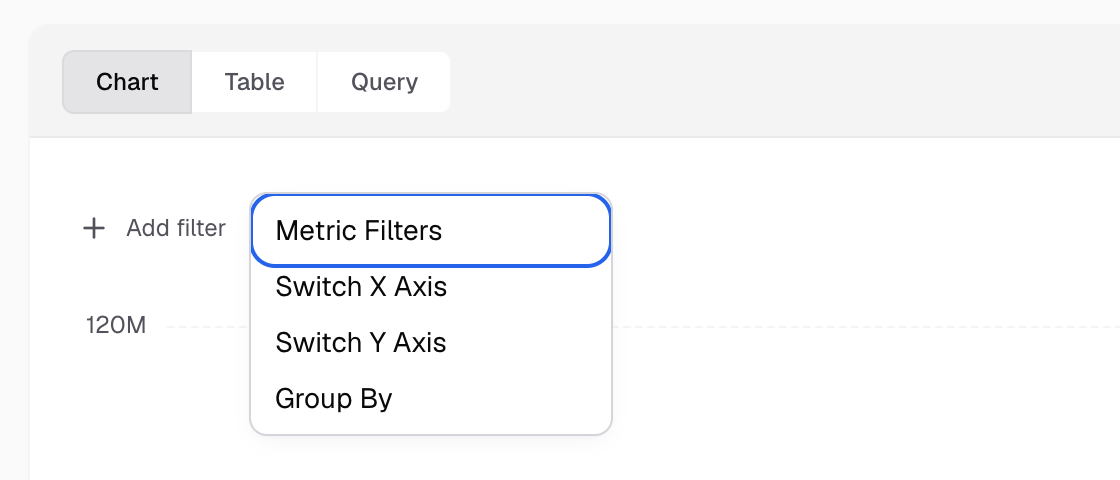
Add filter is above the chart; Metric Filters is the first item. -
In Filter Name, enter a name, for example
Region. -
In Option Type, choose Custom.
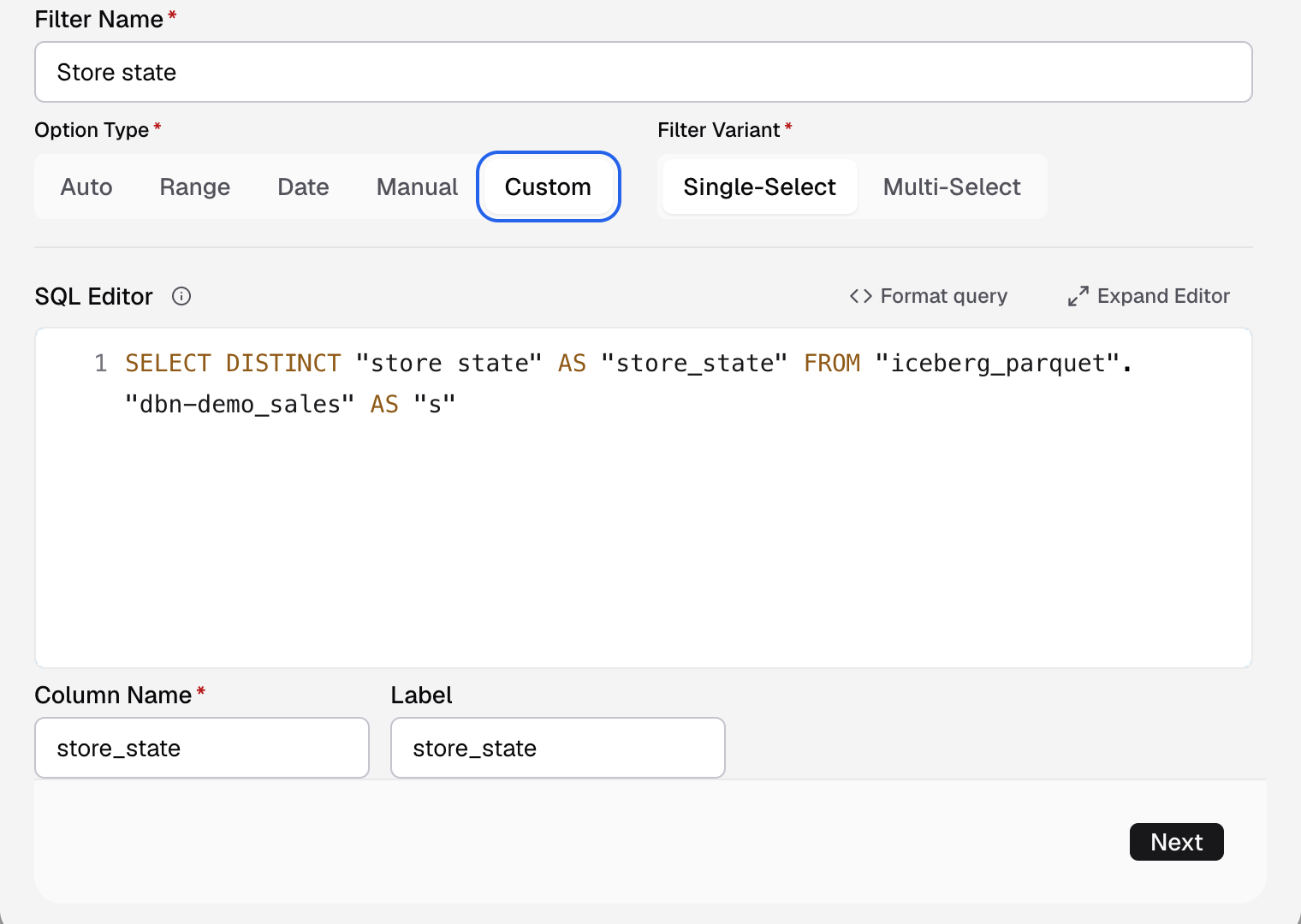
Custom swaps the dataset fields for a SQL Editor. -
In Filter Variant, choose Single-Select or Multi-Select.
-
In SQL Editor, write the query, for example
SELECT DISTINCT "region" AS "region_code", "region_name" AS "region_label" FROM "public"."regions".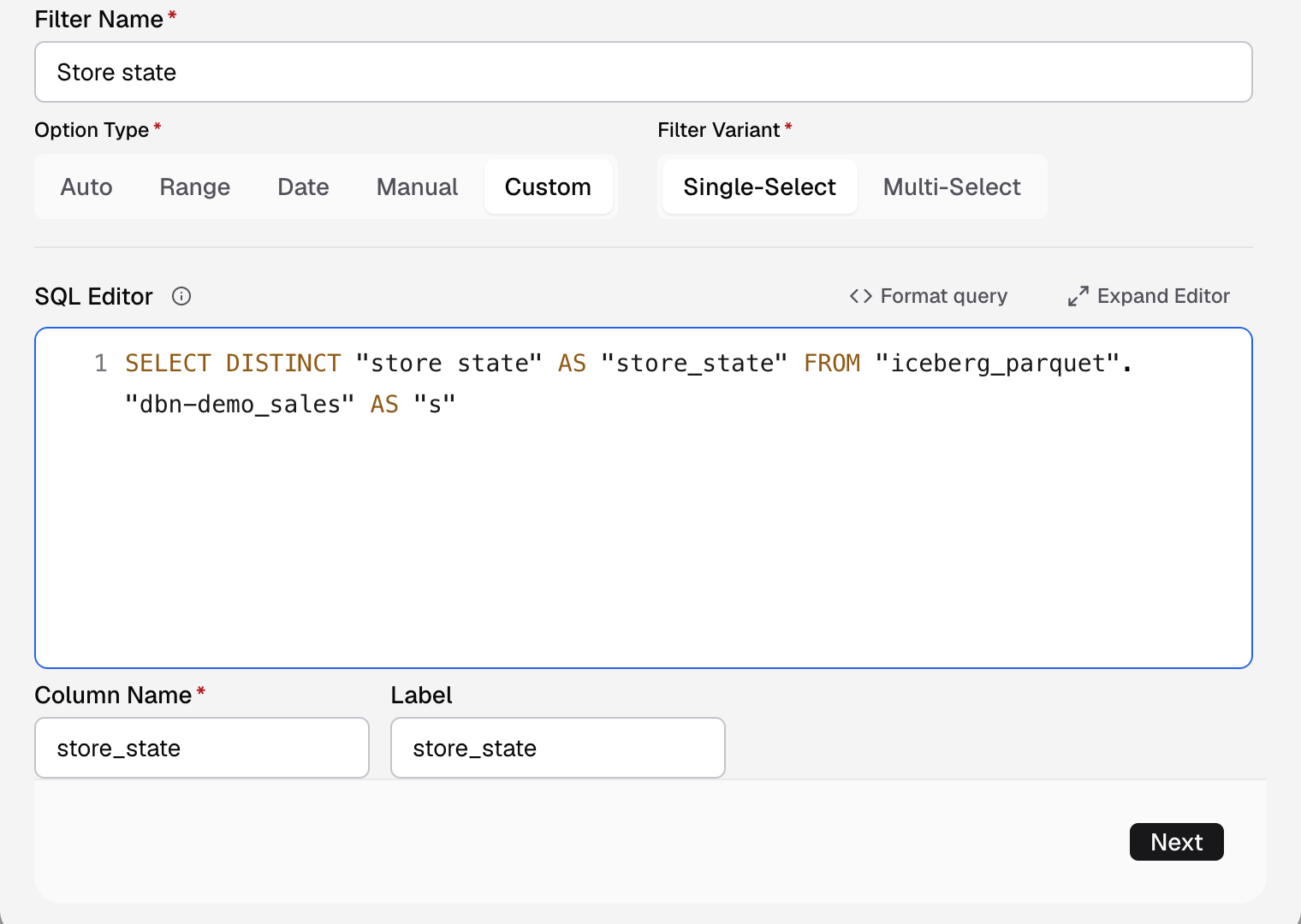
Write the query that returns the options. -
In Column Name, enter the column that holds the values, for example
region_code.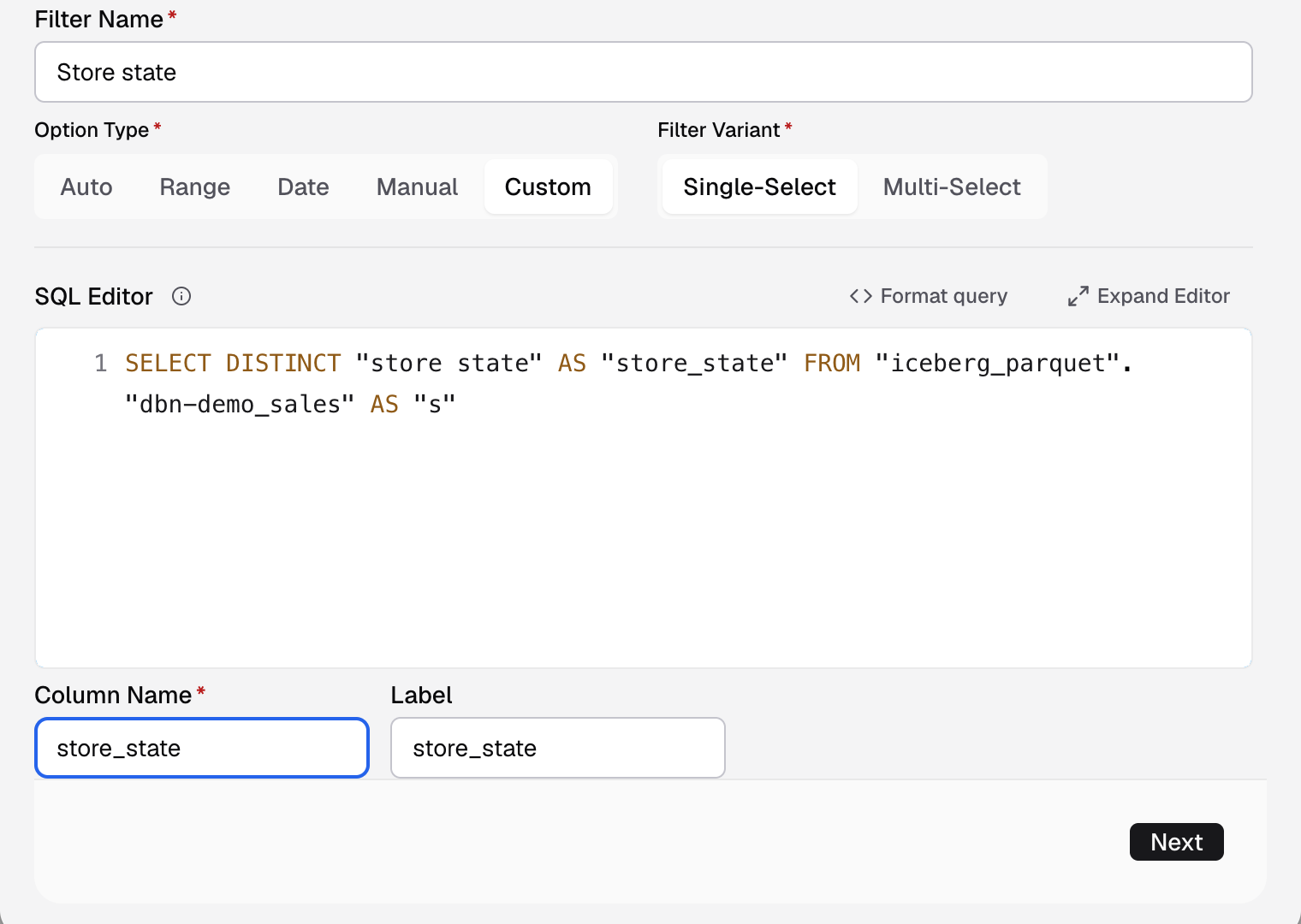
Column Name is the query column that holds the values. -
In Label, enter the column to show to viewers, for example
region_label. This is optional.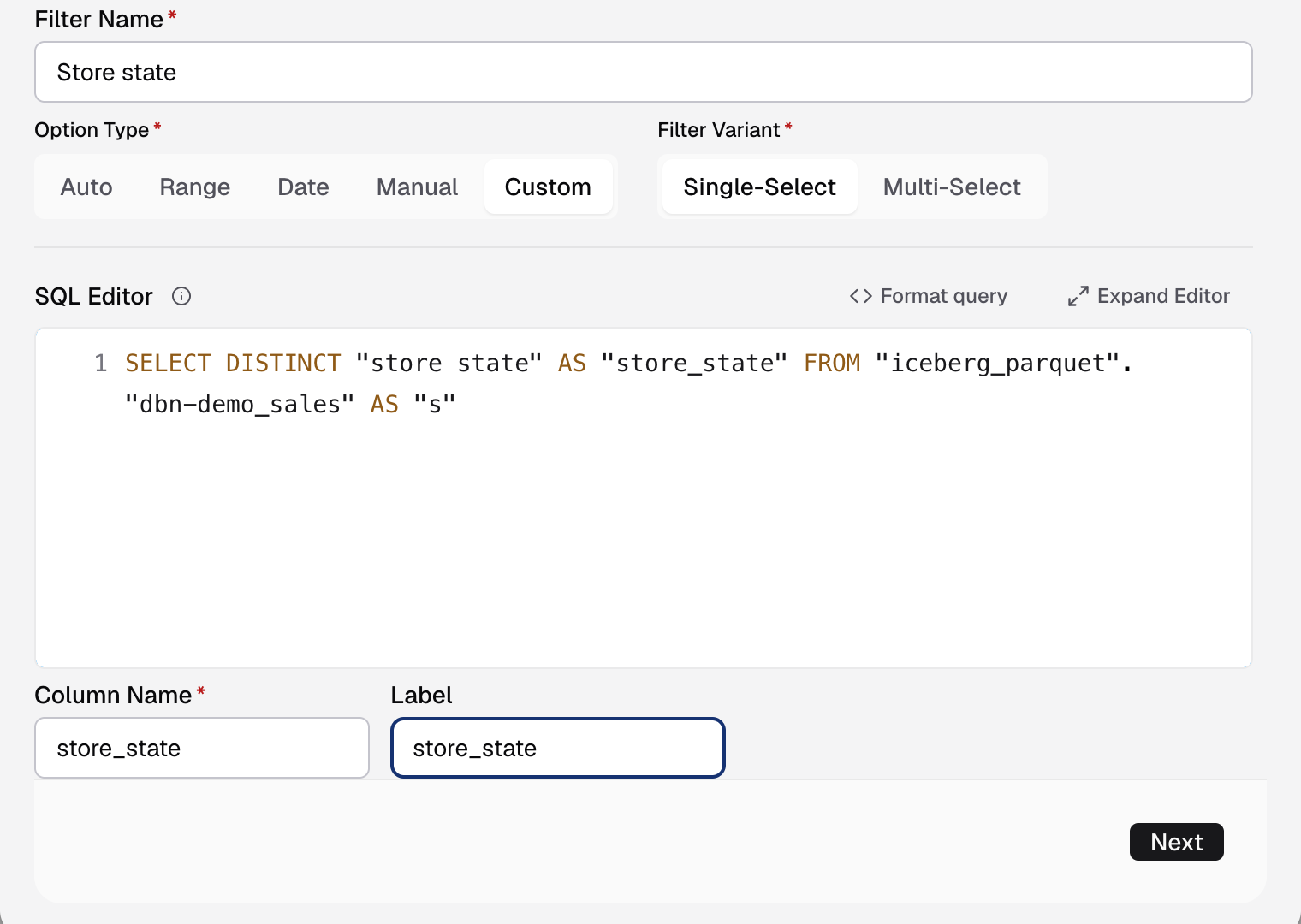
Label is the query column viewers see. -
Select Next, choose where the filter applies, and select Save. Apply a metric filter
Databrain runs the query to check it. Viewers then pick from the values it returns.
Query rules
- One statement that starts with
SELECTorWITH. Read-only queries only. - Databrain uses the query as a subquery to fetch the options.
- Column Name and Label must match a column name or alias in the query.
- Format query tidies the SQL. Expand Editor gives you a bigger editor.
Options that depend on another filter
In Advanced Options, under Depend On, you can narrow the options by another filter:
- Return the matching column in your query, for example
"country" AS "country". - In Filter, pick the other filter.
- Enter the returned column name, for example
country.
If something goes wrong
- please add valid select query. Start with
SELECTorWITH, and send one statement only. - The query fails when you select Next. Run the same SQL on the SQL tab to see the database error.